Guide / How-to
HeyGenの使い方ガイド|AIアバター動画の作り方
HeyGenは、原稿を入力するだけでAIアバターが話す動画を作れるツールです。この記事では、アカウント作成から原稿入力・アバターと音声の選択・書き出しまでの基本の流れを5ステップで解説します。日本語ナレーションのコツや無料で試す方法もまとめました。
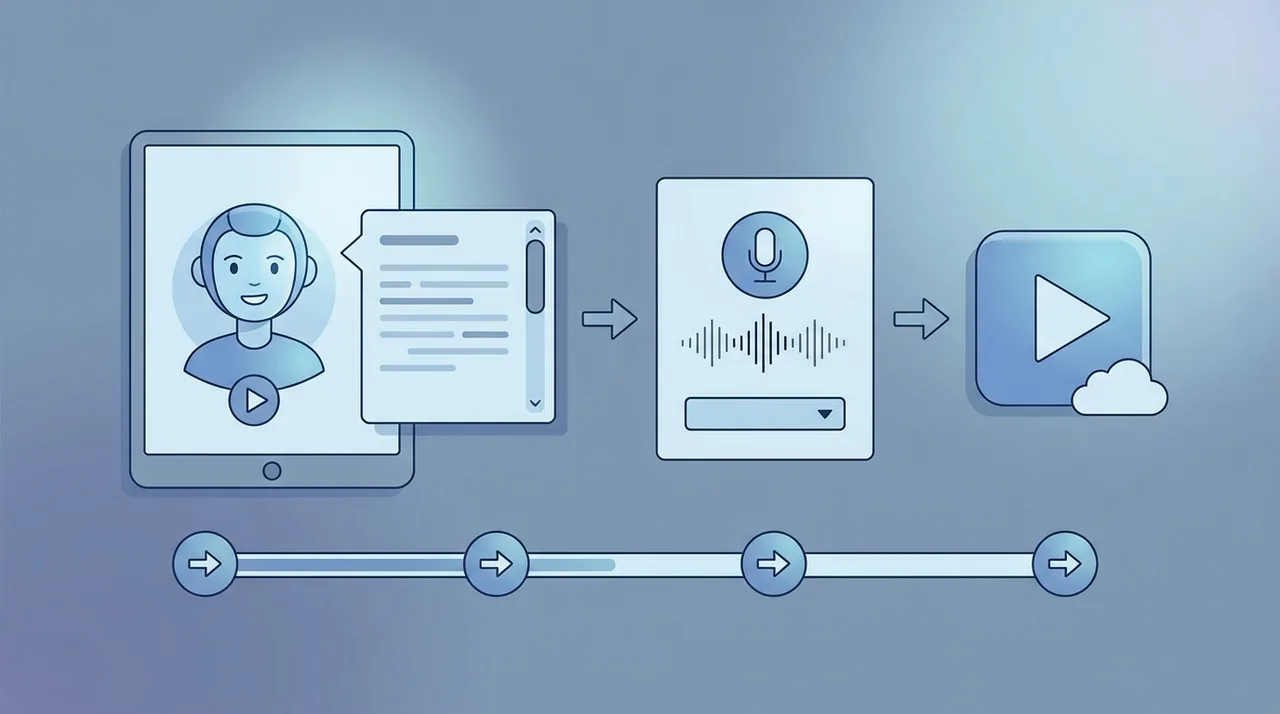
HeyGenとは
HeyGenは、テキスト原稿を入力するとAIアバターがその原稿を話す動画を生成できるツールです。撮影・出演なしでナレーション付きの解説動画やプレゼン動画を作れるため、商品紹介・研修・多言語コンテンツなどで活用されています。同系統のSynthesiaとの違いはSynthesiaとHeyGenの比較で解説しています。
HeyGenの使い方【5ステップ】
ステップ1:アカウントを作成する
公式サイトでアカウントを作成します。無料プランはクレジットカード不要で、月3本・1本1分まで作れます(公式料金ページ・2026年10月16日確認)。まず無料で操作感を確かめてください。無料で試せるツールの考え方は無料で使えるAI動画ツールも参考にしてください。
ステップ2:テンプレートとアバターを選ぶ
用途に合うテンプレートを選び、登場させるAIアバターを選択します。アバターの見た目・服装・背景などを用途(解説・プレゼン・SNS)に合わせて決めます。最初はサンプルに近いテンプレートから始めると迷いません。
ステップ3:原稿(スクリプト)を入力する
アバターに話させる原稿を入力します。AI読み上げは句読点や改行で間(ま)が変わるため、次の点を意識すると自然になります。
- 一文を短く区切る(長文は読み上げが平板になりやすい)
- 句読点で適度に間を作る
- 固有名詞・英数字は読み方を確認する
ステップ4:言語・音声(ボイス)を選ぶ
ナレーションの言語と音声を選びます。日本語対応の音声を選べば日本語ナレーションも作成できます。読み上げの自然さは音声やプランで差が出るため、書き出し前にプレビューで試聴し、イントネーションが不自然な箇所は原稿を調整してください。
ステップ5:プレビューして書き出す
全体をプレビューで確認し、問題なければ書き出し(エクスポート)します。透かしの除去と1本30分までの長尺・1080p書き出しは有料のCreator以上の機能です(公式料金ページ)。本番公開で透かしを外したい場合は有料プランを検討してください。
仕上がりを良くするコツ
- 原稿は声に出して読める長さに:実際に読んでみて詰まる箇所は短くする
- 1動画1メッセージ:盛り込みすぎず要点を絞る
- 字幕を併用:音声オフ環境でも伝わる(SNSで有効)
- 2パターン作って比較:アバター・音声を変えて見比べると、適した組み合わせを判断しやすい
商用利用するときの注意
収益化・広告・商品紹介に使う場合は、プランの商用利用条件を確認してください。提供されたアバター・音声を規約の範囲で使うのが基本です。詳しくはAI動画の商用利用ガイドで解説しています。
まとめ
HeyGenは「テンプレート選択 → アバター選択 → 原稿入力 → 言語・音声選択 → 書き出し」の5ステップで、撮影なしのアバター動画を作れます。まずは無料枠で日本語ナレーションの自然さと操作感を確かめ、本番で必要になったら有料に切り替えるのがおすすめです。機能や料金はHeyGenのレビュー、他ツールとの比較は比較ランキングを参考にしてください。
よくある質問
HeyGenは日本語のアバター動画も作れますか?
HeyGenは多言語に対応しており、日本語のナレーション・字幕にも対応しています(公式料金表では無料プランが30以上、有料のCreator以上が175以上の言語・方言。動画翻訳の対応言語に日本語あり)。読み上げの自然さは原稿やプランで差が出るため、本番前に実際の日本語音声を試聴して確認するのがおすすめです。
HeyGenは無料で試せますか?
試せます。公式料金ページ(2026年10月16日確認)では、無料プランはクレジットカード不要で月3本・1本1分まで。透かしの除去は有料のCreator(月払い$29/年払いなら月$24)以上の機能です。まず無料で操作感と日本語音声を確かめ、本番公開の段階で有料に切り替えるのが効率的です。
HeyGenとSynthesiaはどちらがいいですか?
どちらもAIアバター動画ツールで機能は近く、アバターの種類・音声・料金・無料枠の使いやすさで選びます。用途による向き不向きはSynthesiaとHeyGenの比較記事で詳しく整理しています。
自分の顔のアバターは作れますか?
HeyGenは公式料金表で無料プランからカスタムビデオアバター1体を作成できます。肖像権・本人確認の観点から提供元の手順と規約に従う必要があります。商用利用では、提供されたアバターを規約の範囲で使うのが安全です。
次に読む
このガイドは MoviAI編集部(運営者情報・編集方針) が公開情報をもとに作成しています。