Guide / How-to
Descriptの使い方ガイド|文字起こしで動画を編集する
Descriptは、文字起こししたテキストを編集する感覚で動画・音声を編集できるツールです。この記事では、プロジェクト作成から文字起こし・テキスト編集・フィラー除去・字幕・書き出しまでの基本手順を解説します。
Descriptとは
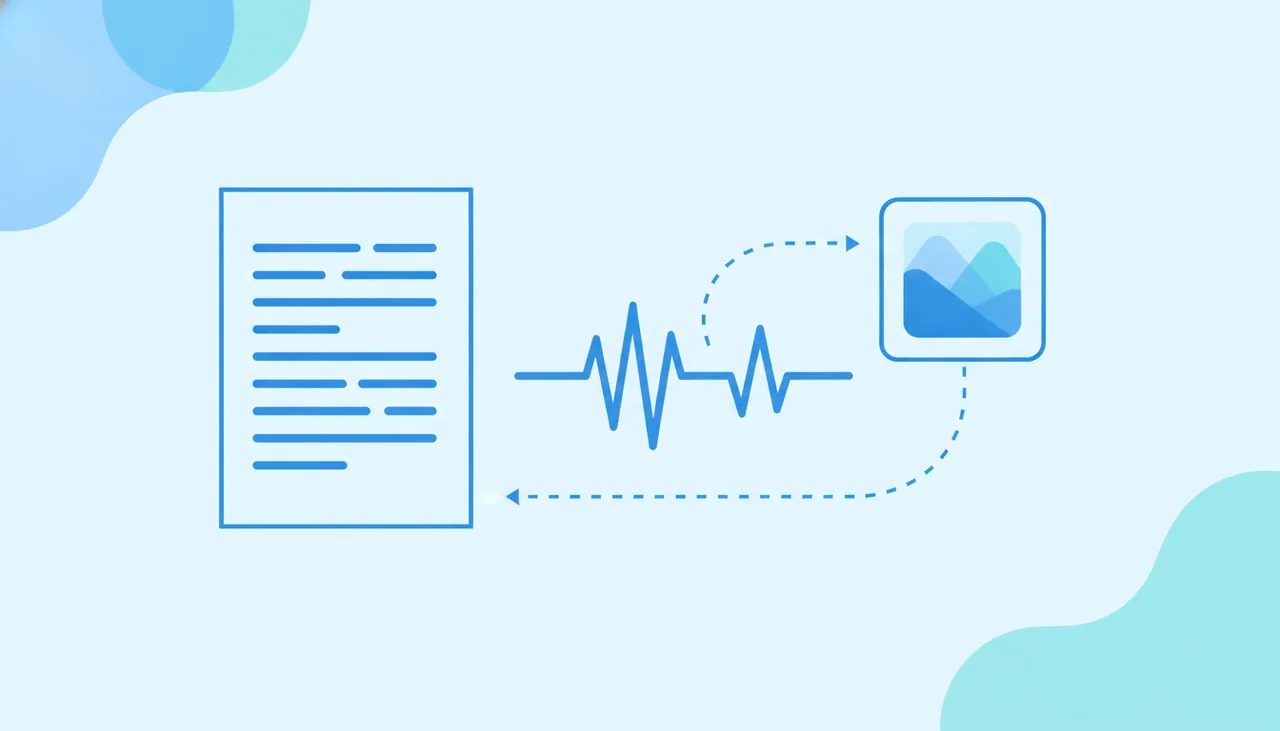
Descriptは、文字起こしされたテキストを編集すると動画・音声も連動して編集される「テキストベース編集」が特長のツールです。文章を消せば対応する映像も消えるため、タイムラインを細かく触らずに直感的に編集できます。ポッドキャストや解説動画、インタビューなど「話す」コンテンツに強いツールです。テキストから動画を自動生成したいならFlikiやPictory、ブラウザ編集ならVeed.ioも選択肢です。
Descriptの使い方【5ステップ】
ステップ1:プロジェクトを作成する
アカウントを作成し、新しいプロジェクトを開きます。無料プランがある場合は、まず無料で操作感を確かめてください。無料枠には文字起こし時間や書き出しの制限が付くのが一般的です。無料で試せるツールの考え方は無料で使えるAI動画ツールも参考になります。
ステップ2:素材を読み込み文字起こしする
編集したい動画・音声をアップロードすると、自動で文字起こしされます(公式の文字起こし対応25言語に日本語は含まれていません。日本語の動画ならVeed/Flikiが現実的)。自動文字起こしは誤変換が出るため、まず内容を確認してください。
ステップ3:テキストを編集してカットする
Descript最大の特長がテキストベース編集です。文字起こしの文章を消すと、対応する映像・音声も一緒にカットされます。次のように使うと効率的です。
- 言い間違い・脱線部分は文章ごと削除する
- 順番を入れ替えたい箇所はテキストを移動する
- 残したい要点だけを文章で整える
ステップ4:フィラー除去・字幕を整える
「um」「uh」などのフィラー(つなぎ言葉)をまとめて除去する機能や、無音をつめる機能を使うとテンポが良くなります。あわせて字幕(キャプション)を生成し、誤変換を修正しておくと、音声オフでも伝わる動画になります。字幕の考え方はAI動画の字幕・テロップ自動生成も参考にしてください。
ステップ5:プレビューして書き出す
全体をプレビューし、問題なければ書き出し(エクスポート)します。無料枠では透かしや解像度の制限が付く場合があるため、本番公開で気になる場合は有料プランの条件を確認してください。
仕上がりを良くするコツ
- テキストで構成:文章を整える感覚で本編をスリムに
- フィラー除去:つなぎ言葉を消してテンポUP
- 字幕を活用:音声オフ環境でも伝わる(SNSで有効)
- 書き出し前に最終確認:文字起こしの誤変換をチェック
商用利用の注意
収益化・広告に使う場合は、プランの商用利用条件と、使用するBGM・素材・フォント、音声合成(ある場合)のライセンスを確認してください。詳しくはAI動画の商用利用ガイドで解説しています。
まとめ
Descriptは「プロジェクト作成 → 文字起こし → テキスト編集 → フィラー除去・字幕 → 書き出し」の手順で、文章を編集する感覚で動画を仕上げられます。まずは無料枠で文字起こし精度と操作感を確かめてください。他ツールとの比較は比較ランキングを参考にしてください。料金や対応状況は変わるため、最新情報は公式でご確認ください。
よくある質問
Descriptの特長は何ですか?
Descriptは、文字起こしされたテキストを編集すると、それに連動して動画・音声も編集される「テキストベース編集」が特長です。文章を消せば対応する映像も消えるため、タイムラインを細かく触らなくても直感的に編集できます。
Descriptは日本語に対応していますか?
公式料金ページ(2026年10月16日確認)の自動文字起こしの対応言語は25言語で、日本語は含まれていません。一方、字幕の翻訳(61言語)と音声の吹き替え(30言語)の対象言語には日本語が含まれます。日本語の動画に字幕を付けたい場合は、日本語の自動字幕に対応するVeedやFlikiの利用が現実的です。
Descriptは無料で使えますか?
無料プラン($0)があります。公式料金ページ(2026年10月16日確認)では、無料は取り込み・録画できる素材が月60分、書き出しは720pまで。透かしなしの書き出しは有料のHobbyist(年払いで月$16/月払い$24)以上で、1080pまで書き出せます。まず無料で操作感を確かめ、本番運用で有料を検討するのが効率的です。
Descriptはどんな用途に向いていますか?
ポッドキャストや解説動画、インタビューなど「話す」コンテンツの編集に向いています。テキストから動画を自動生成したい場合はFlikiやPictory、アバター動画はSynthesiaやHeyGenが選択肢です。
次に読む
このガイドは MoviAI編集部(運営者情報・編集方針) が公開情報をもとに作成しています。