Guide / How-to
Pictoryの使い方ガイド|テキストから動画を作る
Pictoryは、記事やテキスト台本を入力するだけで、ストック映像とナレーション付きの動画を作れるAIツールです。この記事では、アカウント作成からテキスト入力・シーン編集・ナレーション・書き出しまでの基本手順を解説します。無料で試すコツもまとめました。
Pictoryとは
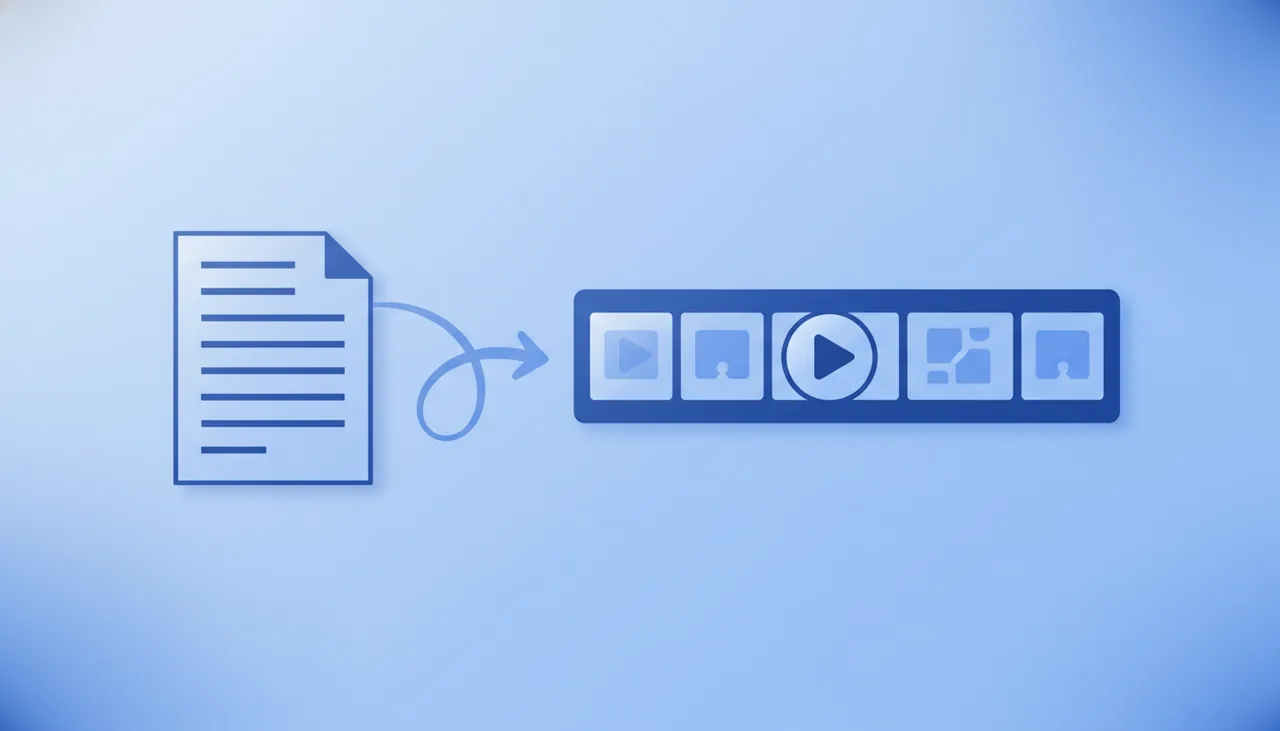
Pictoryは、テキスト(記事・台本)から動画を自動生成できるAIツールです。入力した文章を要約・分割し、各シーンに合うストック映像とナレーション、字幕を自動で組み合わせます。撮影や素材集めをせずに、ブログの動画化や要約動画を作りたい人に向いています。現在はAIアバターを動画に重ねる機能もありますが、アバターが主役の動画ならSynthesiaやHeyGenも比較候補です。テキストから動画を作る機能は公式FAQで「現在は英語のみ」とされているため、日本語で使う場合はトライアルで確認してから契約してください。
Pictoryの使い方【5ステップ】
ステップ1:アカウントを作成する
公式サイトでアカウントを作成します。14日間の無料トライアル(動画生成は合計15分・1本最長5分・最大720p)があるので、まず無料で操作感を確かめてください。無料で試せるツールの考え方は無料で使えるAI動画ツールも参考にしてください。
ステップ2:作りたい動画の種類を選ぶ
Pictoryには「台本・テキストから動画(Script to Video)」「URLから動画(URL to Video)」「録画した動画を文字起こしで編集」などの作成モードがあります。ブログ記事を動画化するならURLベース、台本から作るならテキスト入力ベースを選びます。
ステップ3:テキスト(台本)を入力する
動画にしたい文章や台本を入力します。Pictoryが自動で文章をシーンに分割し、要約します。次の点を意識すると仕上がりが良くなります。
- 1シーンに詰め込みすぎず、要点を短く区切る
- 見出しや箇条書きを使うとシーン分割が整いやすい
- 固有名詞・数値は読み方を確認する
ステップ4:シーン・映像・ナレーションを調整する
自動で割り当てられたストック映像を確認し、合わないシーンは差し替えます。ナレーションは言語・音声を選びます(AI音声はElevenLabsの音声が29言語、と公式に記載)。録音したナレーションをアップロードして動画に自動で合わせることもできます。字幕の誤変換やイントネーションが不自然な箇所は、テキストを修正して整えてください。
ステップ5:プレビューして書き出す
全体をプレビューし、問題なければ書き出し(エクスポート)します。横(16:9)・縦(9:16)・正方形(1:1)に対応し、トライアルの書き出しは最大720p、1080pは有料プランからです。
仕上がりを良くするコツ
- 1動画1テーマ:話題を絞ると視聴維持しやすい
- 字幕を活用:音声オフ環境でも伝わる(SNSで有効)
- ナレーションは試聴して調整:書き出し前に必ず確認
- 用途で使い分け:要約・解説はPictory、アバター動画は別ツール
商用利用の注意
収益化・広告に使う場合は、プランの商用利用条件と、使用するストック映像・BGMのライセンスを確認してください。詳しくは比較ランキングの料金欄や各ツールの規約をご確認ください。
まとめ
Pictoryは「種類選択 → テキスト入力 → シーン・映像・ナレーション調整 → 書き出し」の手順で、テキストから動画を効率よく作れます。日本語での使い勝手は機能ごとに差があるため、まずは14日間の無料トライアルで確かめてください(料金・トライアル条件・対応言語は2026年10月15日に公式料金ページで確認)。機能や料金はPictoryのレビュー、他ツールとの比較は比較ランキングを参考にしてください。似た用途のFlikiの使い方もあわせてどうぞ。
よくある質問
Pictoryは日本語に対応していますか?
機能によって異なります。公式料金ページのFAQでは、テキストから動画を作る機能(text-to-video)は「現在は英語のみ対応」とされています。一方、録画した動画を文字起こしで編集する機能(text-edit)は日本語を含む11言語に対応しています。AI音声はElevenLabsの音声が29言語で使えると記載されていますが、日本語台本からの動画化は公式に対応と書かれていないため、契約前に14日間の無料トライアルで試用して確認してください(2026年10月15日 公式で確認)。
Pictoryは無料で使えますか?
常設の無料プランではなく、14日間の無料トライアルがあります。トライアルでは台本・URLからの動画生成が合計15分まで、1本は最長5分、書き出しは最大720pです。有料はStarter $25/月(年払い時・月払いは$29)からで1080p書き出しに対応します(2026年10月15日 公式料金ページで確認)。
Pictoryはどんな動画作りに向いていますか?
ブログ記事やテキスト台本から、ストック映像を組み合わせた解説・要約動画を作るのが得意です。撮影なしでテキスト主体の動画を量産したい人に向いています。現在はPictory内でもAIアバターを使えます(プランごとにアバター動画の分数の上限あり)が、アバターが主役の動画を本格的に作るならSynthesiaやHeyGenも比較候補になります。
記事URLを貼るだけで動画になりますか?
はい。PictoryにはURL to Video(記事・ブログのURLから動画化)機能があります。公式FAQでは、使える記事はHTML形式のブログ・ニュース記事で、PDF・Word・Googleドキュメントは現在非対応とされています。自動でシーンに分割して映像を割り当てるので、最後にシーンの差し替えや字幕の修正を手動で行うときれいに仕上がります。
次に読む
このガイドは MoviAI編集部(運営者情報・編集方針) が公開情報をもとに作成しています。