Guide / How-to
AI動画の字幕・テロップ自動生成ガイド|ツールと手順・コツ
動画に字幕やテロップを入れる作業は、AIの自動文字起こしで大幅に時短できます。この記事では、自動字幕の仕組みと精度の考え方、対応ツールの選び方、きれいに見せるコツを解説します(公開情報ベース)。
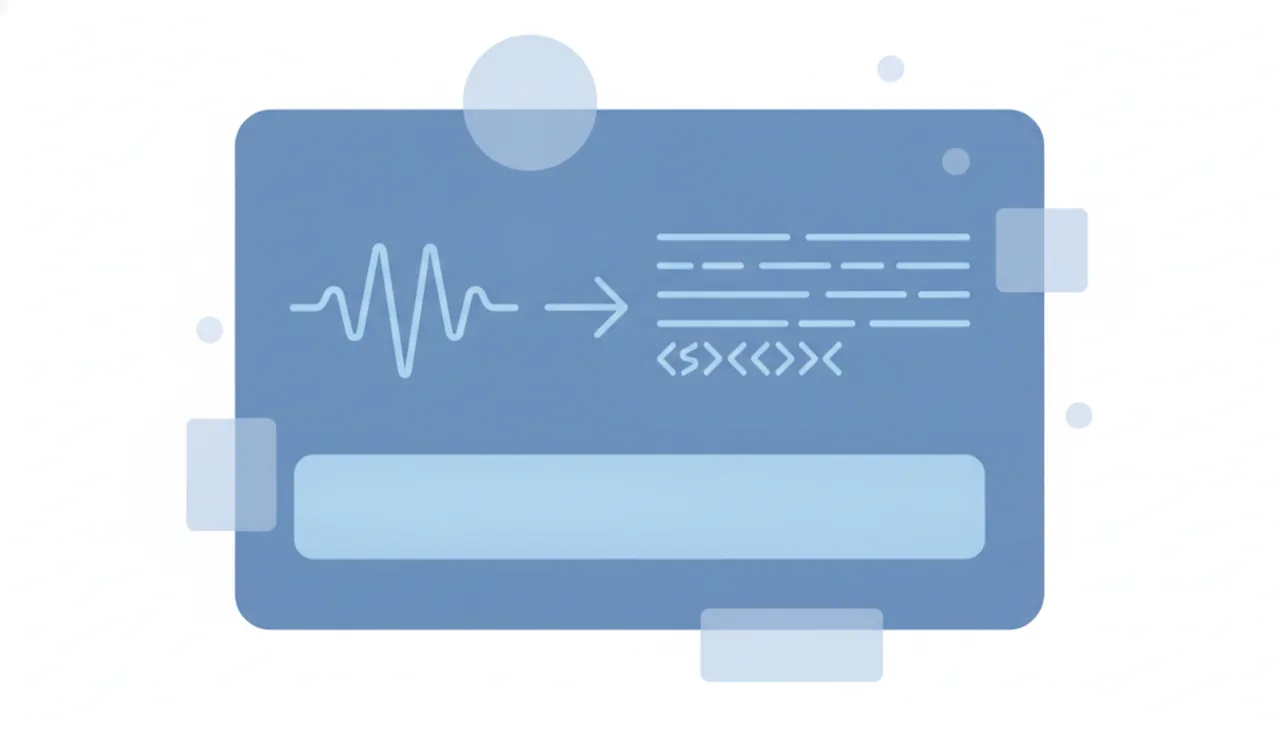
自動字幕とは
自動字幕は、動画の音声をAIが文字起こしし、タイミングに合わせて字幕として表示する機能です。手作業で1文ずつ入力する必要がなく、編集時間を大きく短縮できます。字幕(話した内容の文字化)とテロップ(強調・補足の短い文字)を組み合わせると、音声オフでも伝わる見やすい動画になります。
なぜ字幕が重要なのか
- 音声オフ視聴に対応:SNSは無音再生が多く、字幕がないと内容が伝わらない
- 視聴維持の向上:要点がテロップで分かると最後まで見られやすい
- アクセシビリティ:聞き取りづらい環境や聴覚に配慮できる
- 多言語展開:翻訳字幕で海外視聴者にも届く
字幕を自動生成する手順【4ステップ】
ステップ1:対応ツールを選ぶ
自動字幕に対応した編集ツールを選びます。ブラウザで手軽に使うならVeed.io、文字起こしベースで編集するならDescript、テキストから動画とナレーション・字幕をまとめて作るならFlikiやPictoryが候補です。各ツールの操作はVeed.ioの使い方やDescriptの使い方でも解説しています。
ステップ2:音声を文字起こしする
動画を読み込み、自動文字起こしを実行します。対応言語はツールにより異なります。音声がクリアなほど精度が上がるため、収録時はマイクとノイズに気を配ると後工程の負担を減らせます。
ステップ3:誤変換を修正する
自動字幕は固有名詞・数字・専門用語で誤変換が出やすいため、必ず内容を確認して修正します。ここを丁寧にやるかどうかで仕上がりの印象が大きく変わります。表記ゆれ(半角/全角、送り仮名)も整えておく必要があります。
ステップ4:デザインを整えて書き出す
フォント・サイズ・位置・背景を整えて読みやすくし、書き出し(エクスポート)します。見やすいデザインのポイントは次のとおりです。
- 背景に負けないよう縁取り・帯・影で可読性を確保
- 1行は長すぎず、短く区切ってテンポよく
- 強調したい語だけ色や太さを変える(やりすぎ注意)
- セーフエリアを意識し、UIで隠れない位置に置く
仕上がりを良くするコツ
- 収録音声をクリアに:精度が上がり修正が減る
- 誤変換は必ず確認:固有名詞・数字を重点チェック
- 読みやすさ優先:縁取り・短い行・適切な位置
- 用途で使い分け:仕上げはVeed、構成編集はDescript、生成はFliki/Pictory
商用利用の注意
収益化・広告に使う場合は、ツールのプランの商用利用条件と、フォント・BGMなどのライセンスを確認してください。翻訳字幕を付ける場合はAIで動画を翻訳・吹き替えもあわせて参考に。詳しくはAI動画の商用利用ガイドで解説しています。
字幕とテロップの違い・使い分け
字幕は話している内容をそのまま文字にしたもの、テロップは強調・補足のために載せる短い文字情報です。字幕は音声オフでも内容が伝わり、テロップは要点を目立たせて視聴維持を高めます。実際の動画では全編に字幕+要所にテロップを組み合わせるのが定番です。AIの自動字幕は前者を一気に作る作業を時短し、テロップは手動で要点に絞って足すと過剰になりません。
無料で字幕を付ける方法
まず試すなら無料枠のあるツールが手軽です。短い動画や本数が少ないうちは、無料プラン(書き出し時間・透かし・解像度などの制限あり)で対応できる場合も少なくありません。無料での具体的なやり方・制限は無料で字幕を付ける方法、無料ツール全般は無料で使えるAI動画ツールにまとめています。多言語・長尺・一括処理・商用利用が必要になったタイミングで有料を検討するのが、無駄のない進め方です。
YouTube動画に字幕を付ける
冒頭の数秒や騒がしい環境では、YouTubeでも字幕が視聴維持に効きます。台本から動画・字幕までAIで作る流れはYouTube動画をAIで作る方法で解説しています。長尺の文字起こしはDescriptのようなテキストベース編集が相性良く、テンプレ量産ならFlikiが候補です。
ショート・縦型動画のテロップ自動化
TikTok・YouTube Shorts・リールなどの縦型は音声オフ前提・テンポ重視で、字幕・テロップがほぼ必須です。話したそばから出る「カラオケ風」字幕が好相性。縦型字幕の作り方はショート動画のテロップ自動化、量産はAIショート量産、TikTok向けはTikTok動画をAIで作るを参照。デザインテンプレが豊富なCanvaやFlikiが縦型字幕に向きます。
ツール別の字幕・テロップ機能
- Canva:縦型を含む動画テンプレートが豊富。字幕をワンクリックで生成・装飾できます。
- Fliki:テキスト→動画+ナレーション+字幕を一括生成(80以上の言語)。手持ちの動画に字幕を付けたり、無音・フィラーを自動カットする機能もあります。量産向き。
- Pictory:ブログ記事・URL・台本の動画化と自動字幕が得意。ただし「テキストから動画」機能は公式FAQで現在は英語のみ。
- Veed.io:ブラウザで自動字幕+スタイル調整。字幕の焼き込みのほか、SRT・VTT・TXTでの書き出しにも対応(字幕ファイルのダウンロードは有料プラン)。
- Descript:25言語の文字起こしに対応。文字起こしを文書のように編集する感覚で、動画と字幕を直せる。
多言語の翻訳字幕・吹き替えまで広げたい場合はAI吹き替え・多言語化、日本語の精度や言い回しは日本語対応の考え方も参考にしてください。
字幕重視で選ぶなら
「字幕・テロップのしやすさ」で選ぶなら用途別に最適なツールが変わります。字幕特化で選ぶなら字幕・テロップ向けAI動画ツール比較(無料ツールと有料ツールの選び分けを整理)をご参照ください。総合比較はAI動画ツール比較、テキスト→動画系の代表どうしはFliki と Pictory の比較で確認できます。
まとめ
字幕・テロップの自動生成は「ツール選び → 文字起こし → 誤変換修正 → デザイン・書き出し」の手順で進めます。自動字幕は時短に有効ですが、誤変換の確認だけは省かないのが品質のコツです。ツール選びは比較ランキングを参考にしてください。対応言語などは変わるため、最新情報は各公式でご確認ください。
よくある質問
AIの自動字幕はどのくらい正確ですか?
ツールや音声の明瞭さ、専門用語の有無によって精度は変わります。固有名詞や数字は誤変換が出やすいため、自動生成のまま使わず、書き出し前に必ず内容を確認・修正することをおすすめします。
字幕とテロップは何が違いますか?
字幕は話している内容を文字にしたもの、テロップは強調・補足のために載せる短い文字情報です。字幕は音声オフでも内容が伝わる効果があり、テロップは要点を目立たせて視聴維持を高める役割があります。
日本語の字幕も自動生成できますか?
多くのツールが多言語の自動字幕に対応しています。たとえばDescriptは25言語の文字起こしに対応、Veed.ioは日本語字幕の生成・翻訳に対応、Flikiは80以上の言語で字幕を付けられると公式に記載しています(2026年10月15日 確認)。一方、Pictoryの「テキストから動画」機能は公式FAQで現在は英語のみとされています。対応状況は変わるため、各ツールの公式情報で最新の対応言語を確認してください。
字幕はSNSで効果がありますか?
はい。SNSは音声オフで再生されることが多いため、字幕があると内容が伝わりやすく、最後まで見てもらえる可能性が高まります。特にショート動画では字幕・テロップがほぼ必須といえます。
次に読む
このガイドは MoviAI編集部(運営者情報・編集方針) が公開情報をもとに作成しています。